Tutorial 3 — Additional Sensors & Pumps
The AgXRP platform supports much more than the single soil sensor and pump that come with the base kit. This tutorial explains how to add additional sensors and pumps, how to wire them, and how to configure each one through the web interface.
Expansion Capabilities
The AgXRP can support:
- Up to 4 capacitive soil moisture sensors — Monitor moisture in multiple pots or soil zones.
- Up to 4 water pumps — Water multiple plants independently with their own plant system controllers.
- CO2, temperature, and humidity sensor (SCD4x) — Measure carbon dioxide levels, air temperature, and humidity in your growing environment.
- Light intensity sensor (VEML) — Measure ambient light levels in lux.
- Spectral light sensor (AS7343) — Measure blue, green, red, and near-infrared light channels for detailed light quality analysis.
- OLED display screen — A small screen connected to the board that shows live sensor readings without needing to connect via the web interface.
How Qwiic Daisy-Chaining Works
All sensors connect to the XRP board through the qwiic connector system. The board has two qwiic ports (qwiic 0 and qwiic 1), but you are not limited to two sensors. Qwiic cables can be daisy-chained — each sensor has two qwiic connectors on it, so you can connect one sensor to the board, then connect the next sensor to the first sensor, and so on.
All sensors daisy-chained from the same qwiic port share the same I2C bus:
- Sensors connected from qwiic 0 → Bus 0
- Sensors connected from qwiic 1 → Bus 1
When you configure each sensor on the Configuration page, you must set the Bus field to match which qwiic port that sensor's chain originates from.
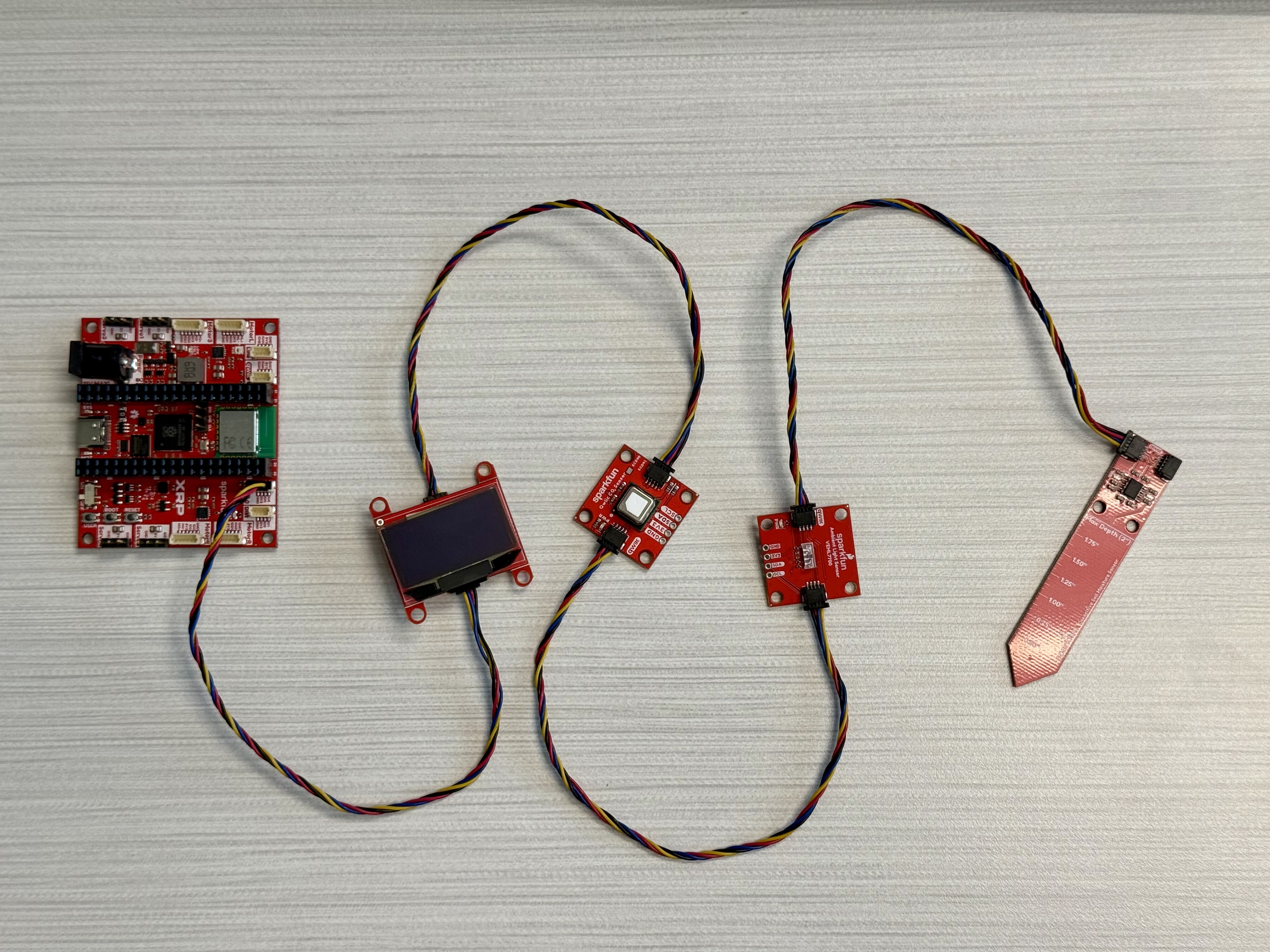 Three sensors daisy-chained from qwiic 0 (all on Bus 0)
Tip
You can split sensors across both buses. For example, put soil sensors on Bus 1 and environmental sensors (CO2, light) on Bus 0. This can improve reliability when you have many sensors.
Adding More Soil Sensors
Wiring
- Connect the additional soil sensor to the open qwiic connector on your existing sensor (daisy-chain), or directly to the other qwiic port on the board if it is free.
- Note which bus the new sensor is on.
Configuration
Step 1. Go to http://192.168.4.1/configure and scroll to the Soil Sensors section.
Step 2. Find the next available soil sensor slot (e.g., Soil Sensor 2) and configure it:
| Field | What to Set |
|---|---|
| Enabled | Yes |
| Sensor Index | A unique number (e.g., 2) — this is how you pair the sensor with a pump. |
| Bus | 0 or 1, matching the qwiic port the sensor chain originates from. |
| I2C Address | 0x37 (default for capacitive soil sensors). |
| Type | Capacitive |
I2C Address Conflict
All capacitive soil sensors have the same default I2C address (0x37). If you are connecting two or more soil sensors to the same bus, each sensor on that bus must have a different I2C address. You can change the address on some sensors using a solder jumper — check the sensor documentation. Alternatively, put each soil sensor on a different bus (one on qwiic 0, one on qwiic 1) to avoid address conflicts.
Step 3. If you also added a new pump, scroll to the Pumps section and enable a second pump with a unique index.
Step 4. Scroll to the Plant Systems section and create a new plant system pairing the new sensor index with the new pump index.
Step 5. Click Save Configuration, then Reboot to Apply Changes.
Step 6. Verify on the Dashboard that the new sensor and pump appear. Manually start the new pump and confirm the blue LED lights up on the correct sensor.
Adding More Pumps
Wiring
Connect the additional pump to any unused motor port on the XRP board. The board has 4 motor ports total.
Configuration
Step 1. Go to http://192.168.4.1/configure and scroll to the Pumps section.
Step 2. Enable a new pump entry and give it a unique Pump Index (e.g., 2).
Step 3. Optionally set a CSV Filename (e.g., water_pump_2_log.csv) to log this pump's activity.
Step 4. In the Plant Systems section, create a new plant system that pairs a sensor index with this new pump index.
Step 5. Click Save Configuration, then Reboot to Apply Changes.
Available Sensors
Below is a description of each additional sensor the AgXRP supports. To purchase these sensors, look for the SparkFun qwiic-compatible versions linked below.
CO2, Temperature & Humidity Sensor (SCD4x)
The SCD4x is a combined sensor that measures carbon dioxide concentration in parts per million (ppm), temperature in °C, and relative humidity as a percentage. This is useful for monitoring the air quality in a greenhouse, growth chamber, or classroom environment.
Purchase: SparkFun SCD4x CO2 Sensor
Author Note
SparkFun product link to be filled in before distributing.
Wiring: Daisy-chain to any qwiic port using a qwiic cable.
Configuration:
- Go to http://192.168.4.1/configure.
- In the CO2 Sensor (SCD4x) section, set Enabled to Yes.
- Set the Bus to match the qwiic port it is daisy-chained from (
0or1). - Save and reboot.
When enabled, the Dashboard will display three new readings: Temperature, Humidity, and CO2 PPM.
Light Intensity Sensor (VEML)
The VEML sensor measures ambient light intensity in lux. This is useful for tracking how much light your plants are receiving throughout the day.
Purchase: SparkFun VEML Light Sensor
Author Note
SparkFun product link to be filled in before distributing.
Wiring: Daisy-chain to any qwiic port using a qwiic cable.
Configuration:
- Go to http://192.168.4.1/configure.
- In the Light Sensor (VEML) section, set Enabled to Yes.
- Set the Bus to match the qwiic port it is daisy-chained from.
- Save and reboot.
When enabled, the Dashboard will display a Light Intensity reading in lux.
Spectral Light Sensor (AS7343)
The AS7343 is a multi-channel spectral sensor that measures light in individual wavelength bands: blue, green, red, and near-infrared (NIR). This gives you detailed information about the quality of light your plants are receiving, not just the intensity.
Purchase: SparkFun AS7343 Spectral Sensor
Author Note
SparkFun product link to be filled in before distributing.
Wiring: Daisy-chain to any qwiic port using a qwiic cable.
Configuration:
- Go to http://192.168.4.1/configure.
- In the Spectral Sensor (AS7343) section, set Enabled to Yes.
- Set the Bus to match the qwiic port it is daisy-chained from.
- Save and reboot.
When enabled, the Dashboard will display four new readings: Blue Light, Green Light, Red Light, and NIR Light.
OLED Display Screen
The OLED display is a small screen that connects to the board via qwiic. When enabled, it shows live sensor readings directly on the display — so you can check your data without opening a web browser or connecting a phone.
Purchase: SparkFun Qwiic OLED Display
Author Note
SparkFun product link to be filled in before distributing.
Wiring: Daisy-chain to any qwiic port using a qwiic cable.
Configuration:
- Go to http://192.168.4.1/configure.
- In the OLED Screen section, set Enabled to Yes.
- Set the Bus to match the qwiic port it is daisy-chained from.
- Save and reboot.
Example Multi-Sensor Setup
Here is an example of a fully expanded AgXRP setup with 2 soil sensors, 2 pumps, a CO2 sensor, a light sensor, and an OLED display:
| Component | Connected to | Bus | Config Section |
|---|---|---|---|
| Soil Sensor 1 | qwiic 1 (direct) | 1 | Soil Sensors → Index 1, Bus 1 |
| Soil Sensor 2 | qwiic 0 (direct) | 0 | Soil Sensors → Index 2, Bus 0 |
| CO2 Sensor (SCD4x) | Daisy-chained from Soil Sensor 2 | 0 | CO2 Sensor → Enabled, Bus 0 |
| Light Sensor (VEML) | Daisy-chained from CO2 Sensor | 0 | Light Sensor → Enabled, Bus 0 |
| OLED Display | Daisy-chained from Soil Sensor 1 | 1 | OLED Screen → Enabled, Bus 1 |
| Pump 1 | Motor port 1 | — | Pumps → Index 1 |
| Pump 2 | Motor port 2 | — | Pumps → Index 2 |
Plant Systems:
- Plant System 1: Sensor Index 1 + Pump Index 1
- Plant System 2: Sensor Index 2 + Pump Index 2
Next Steps
- Proceed to Tutorial 4 — Pump Calibration to prime and test your water pumps.
- Proceed to Tutorial 5 — Moisture Sensor Calibration to find the right moisture threshold for your soil.